Overview
This article provides a step-by-step guide for regulators to access, review, and process Education Provider applications, Program applications, and associated Students within the Quality Module of the Workbench.
Note: If your agency is working with an Education Provider Portal. (EPP)
Education Providers, such as schools, universities, and centers of learning, can access your agency's EPP to register an account and apply to become an approved Education Provider. Once your agency reviews and approves an Education Provider, the Education Provider can then submit applications for the Programs they're looking to have your agency approve. Education Providers can also use the EPP to record student data for students taking part in a program.
Would you like more information on the Portal User Experience for the Education Provider Portal?
Check out our Completing an Education Provider Application, Adding Curriculum, and Students Support Page article.
Access the Quality Workbench Module.
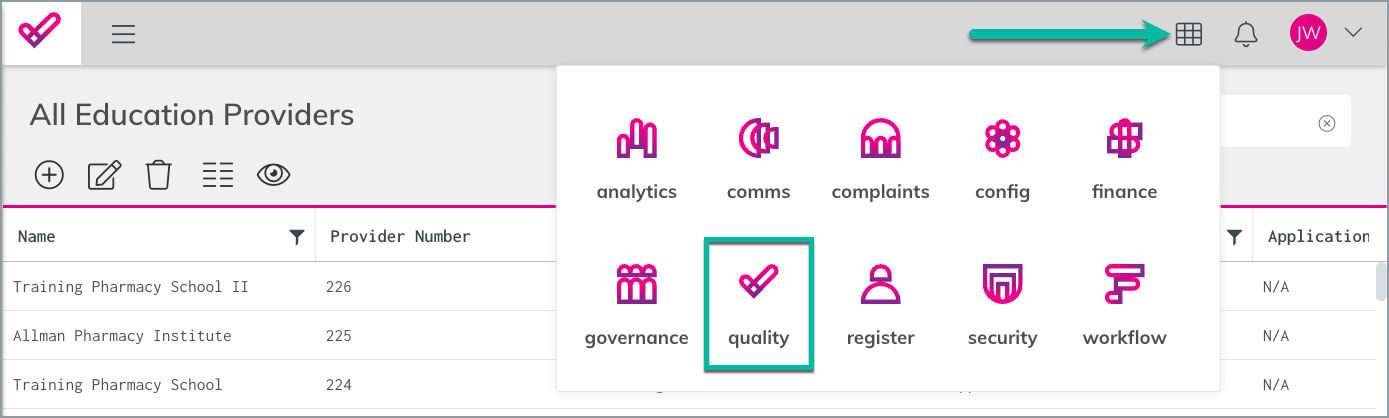
Steps to Access and Approve Education Provider Applications.
- Open the Menu (upper-left) and select the Education Provider option on the left-hand menu.
- Open the Record (Education Provider) you're looking to access.
Keep in mind that you can:
-Type to search in the upper-right.
-Click on the header of the column to sort records.
-Use the filter icon in the header of each column to filter records.
For example: Education Provider Status is equal to Submitted. - Navigate through the information your agency is collecting from Education Providers during an application. Examples include:
-Contact Information
-Invoice
-Attestations
-Declarations
-Submitted Documents
-The entire application can be viewed as a PDF on the Files tab on the expandable right side.
- Keep Education Provider Status in the most applicable status, indicating recent milestones/markers and likely next steps.
- Once the Education Provider Status is marked as Approved, the Education Provider will then be able to access the EPP and submit application(s) for the Programs they're looking to have approved.
Steps to Access and Approve Education Provider Program Applications.
There are two ways you can access Education Provider Program Applications.
-
While viewing an Education Provider record, access the Program Applications connection in the left-hand menu.
-
From the hamburger menu, select Education Provider Program Application.
-
Once the Program Application is open, follow your workflow.
-Invoice
-Attestations
-Declarations
-Submitted Documents (For example, uploaded Curriculum)
-The entire application can be viewed as a PDF on the Files tab on the expandable right side. -
To approve the Program Application, change the status to Approved, and click the Save icon.
- Once the Program/Curriculum is approved, the Education Provider will be notified via an automatic email notification.
Approving the Student Enrollment
Once the Program/Curriculum is approved, the Education Provider can start to add students to the approved Program/Curriculum that falls under the Program. The following are the steps to access, review, and approve a submitted student.
- There are two ways to access the approved program.
From the Quality module Menu, select Education Provider Program.
Or, while viewing an Education Provider Record, access the Program section in the left-hand menu. -
Once in the approved Program, from the left-hand navigation menu, select Student Enrollments.
-
Follow your agency's process to review the submitted information about the student.
For example:
-Attestations
-Declarations
-Submitted Documents (Certificates, diplomas, etc.) -
From here, the information about the student will be displayed, and once verified, change the stats to Approved and click the Save icon.
Comments
0 commentsArticle is closed for comments.