Overview
In the Analytics module, an interactive query produces a report. From that report, you can download the results in two ways:
Export to Excel downloads a CSV file you can open in Excel or another spreadsheet program. Use this when you need every column, or when you want to sort, filter, or calculate the data outside Workbench.
Export PDF downloads a formatted PDF of the same report, ready to read, print, or share. The PDF is a fixed landscape page, so it is meant for reports that fit on that page.
Both downloads contain the full result of the query. They include rows beyond the ones shown on the current screen.
Steps to access
- Access to Workbench and to the Analytics module.
- Both buttons sit in the menu bar of the report.
- Hover over the Excel icon to see Export to Excel.
- Hover over the PDF icon to see Export PDF.
- Hover over the Excel icon to see Export to Excel.
Note: The buttons are available only while you are looking at the generated report.
Query Builder (Detail Report or Aggregate Report, created with Build Query By Interface):
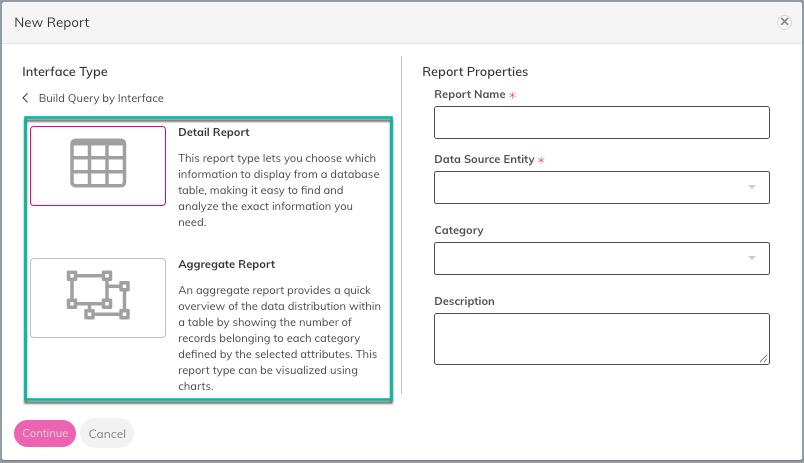
1. Open the query and click Save & Run so the full report is on screen.
2. The Excel and PDF icons appear in the menu bar.
3. Click Edit to change the query. While you are editing, both export icons are hidden.
Click Save & Run again to bring them back.
Query Editor (created with Write Query):
1. Open the query and click Execute query.
2. The Excel and PDF icons stay unavailable until the query has run. After the report appears, both icons can be clicked.
3. The file is built from the query in the editor at the moment you click the icon. If you change the query, run it again before you export, so the report on screen matches the file.
Export to PDF Guidelines
- After clicking the PDF icon, the icon is unavailable while the PDF is being created, then becomes available again.
- When the file is ready, your browser downloads it.
- Stay in Workbench while the file is created. Workbench does not email the PDF.
- If the export cannot be completed, an error message appears, and no file is downloaded.
What each page shows
The PDF is landscape A4. Text is compact so more columns can fit, and long values wrap inside their cells so the full text stays visible.
Top of every page
- The environment name and the report name, in the form “Environment name: Report name”.
- The date and time the file was created, in the environment’s time zone, in the form
`Generated yyyy-MM-dd HH:mm:ss` plus the time zone. - The query text itself is left off the page.
Bottom of every page
- Who exported the report: first name, last name, and email address.
- The number of rows in the report.
- The page number, in the form `Page n of m`.
The Table
- Column headings repeat at the top of every page.
- Headings are rewritten for reading. Underscores become spaces, and each word is capitalized. `license_expiration_date` appears as `License Expiration Date`. The CSV file still uses the original names.
- Every column is left-aligned, including numbers and dates.
- Alternate rows are shaded so a long table is easier to scan.
- A row always stays on one page. A tall row moves to the next page rather than splitting.
- Accented letters such as é are kept. Curly quotation marks and long dashes are converted to straight quotes and hyphens. A character the PDF font cannot print is left out of the PDF. The CSV file still has the original text.
Comments
0 commentsArticle is closed for comments.