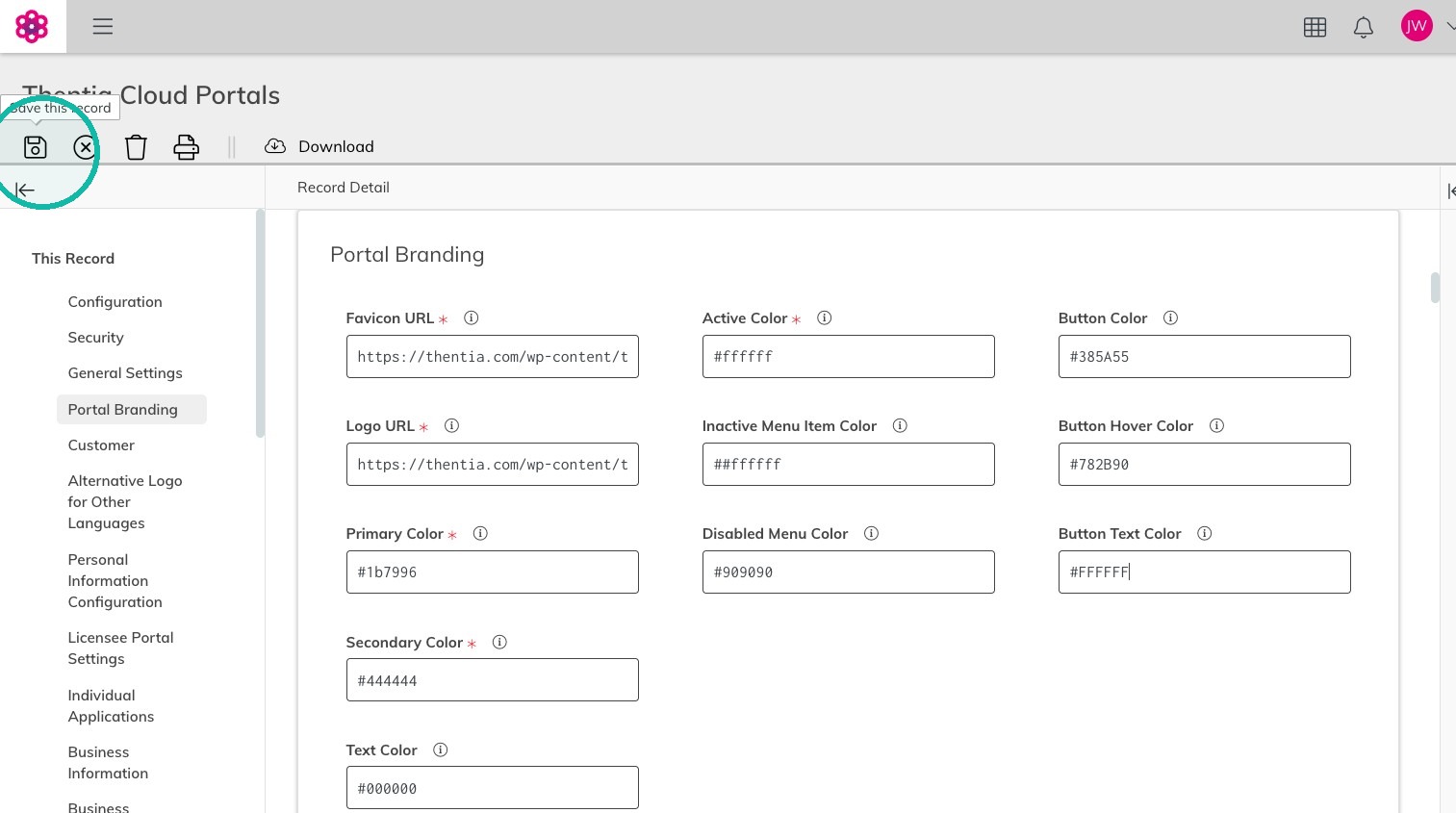
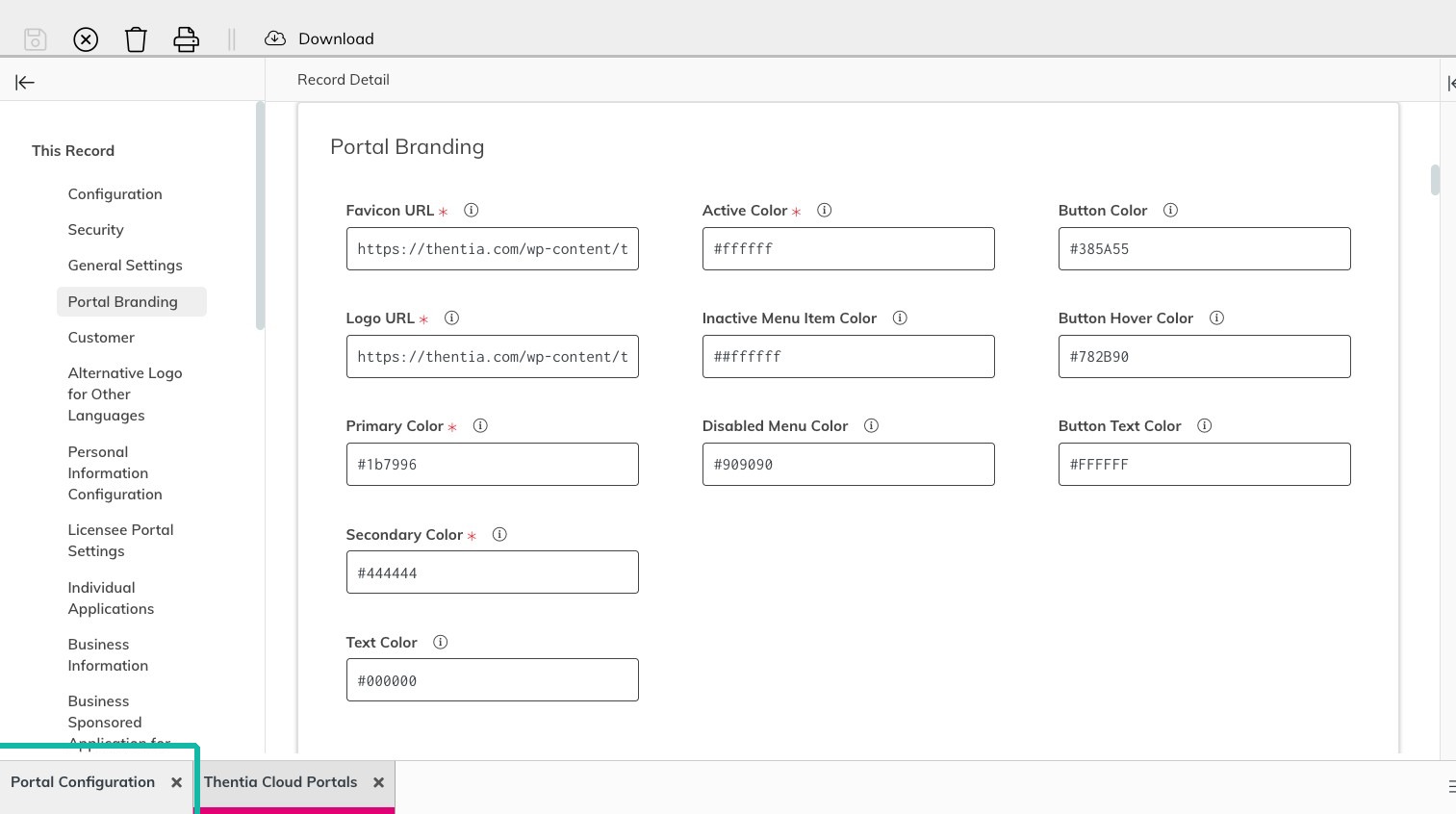
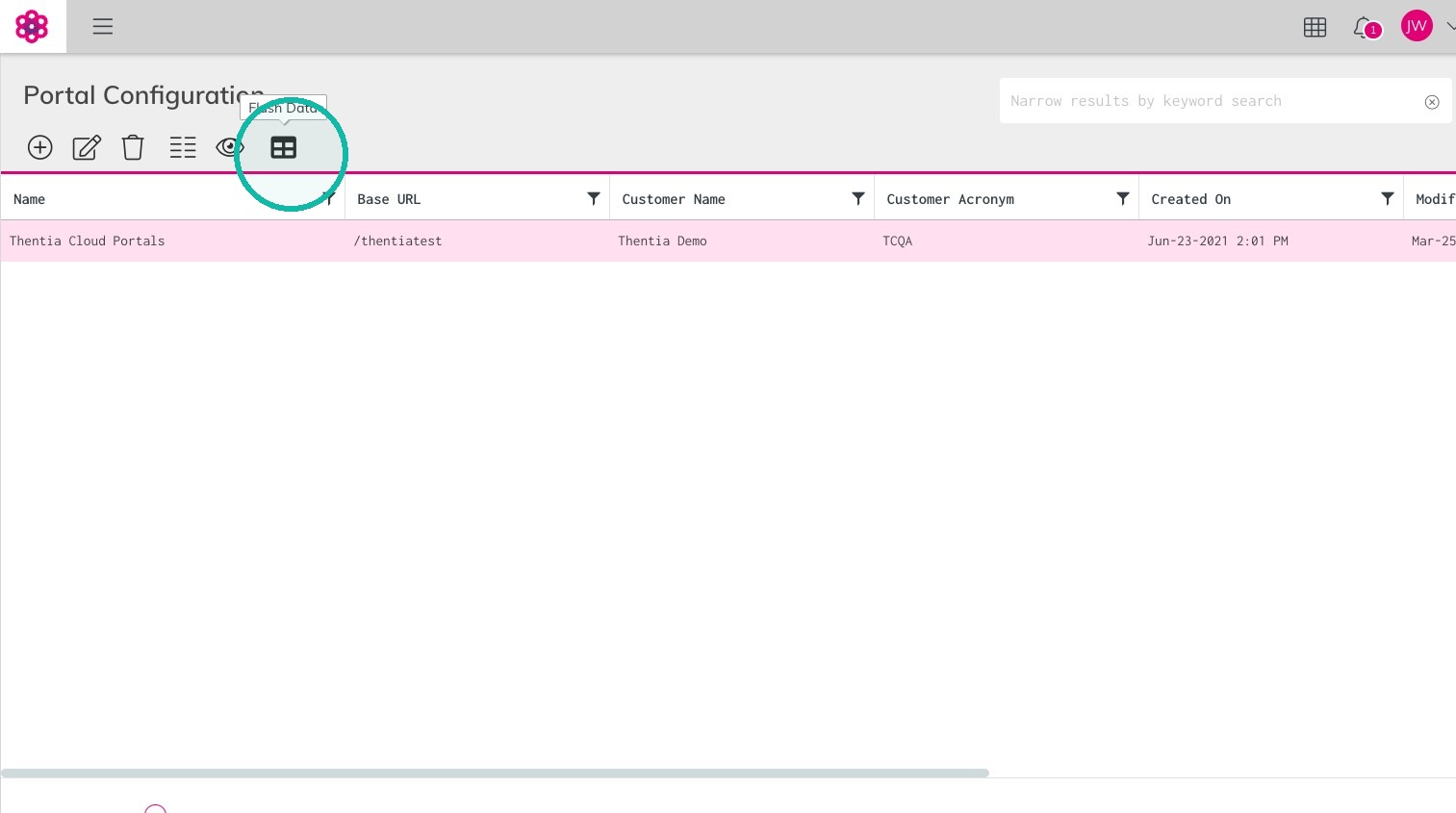
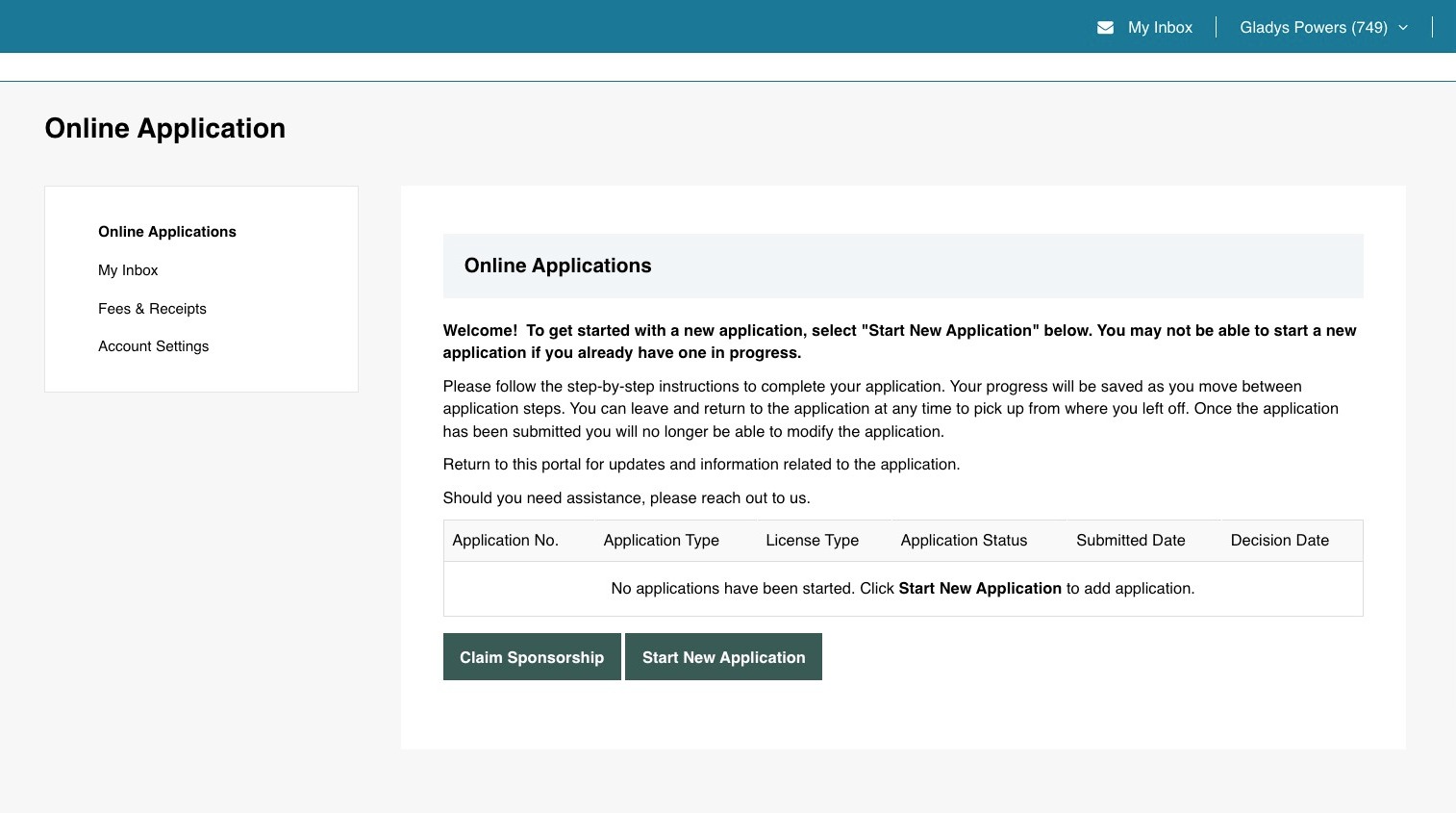
Configuring Portal Branding Colors
Updated September 25, 2026 18:51
Was this article helpful?
Yes
No
0 out of 0 found this helpful
Return to top
https://support.thentia.com/hc/en-us/categories/360005655191
/hc/theming_assets/01K22VN5WGFWMATNNHFC86S029
Thentia Cloud updates
Find out what’s new in Thentia Cloud, from our latest releases to important announcements.
custom
https://support.thentia.com/hc/en-us/categories/15364863848980
/hc/theming_assets/01K22VN65XG7JVBNX90EHHCAGY
Training and General Information
New to Thentia Cloud? Start here to learn the basics to ensure that you have the best experience.
custom
https://support.thentia.com/hc/en-us/categories/25490087848852
/hc/theming_assets/01JQYKGTRBRYKP2D2VN8VTGBWE
Workbench: General, Comms, Analytics & Finance
Guides for regulators to learn basic workbench interfaces.
custom
https://support.thentia.com/hc/en-us/categories/25490030195220
/hc/theming_assets/01K22VN6PS7D3MMT6V7SP6R9FC
Workbench: Processing and Licensing
Guides for regulators to learn how to process and manage licenses.
custom
https://support.thentia.com/hc/en-us/categories/25490032579092
/hc/theming_assets/01JQYGSEHGK0EKKNGYT5R6B6XR
System Configuration
Guides for System Administrators to learn how to suport and configure your Thentia Cloud environment such as User Management, Portals, & Workbench Configurations.
custom
https://support.thentia.com/hc/en-us/categories/25490059955092
/hc/theming_assets/01JQYM3T313N6XA62HQTQQKQTH
Portal User Experience
Guides for licensees to manage their licenses/registrations and interact with regulators.
password, workbench, portal
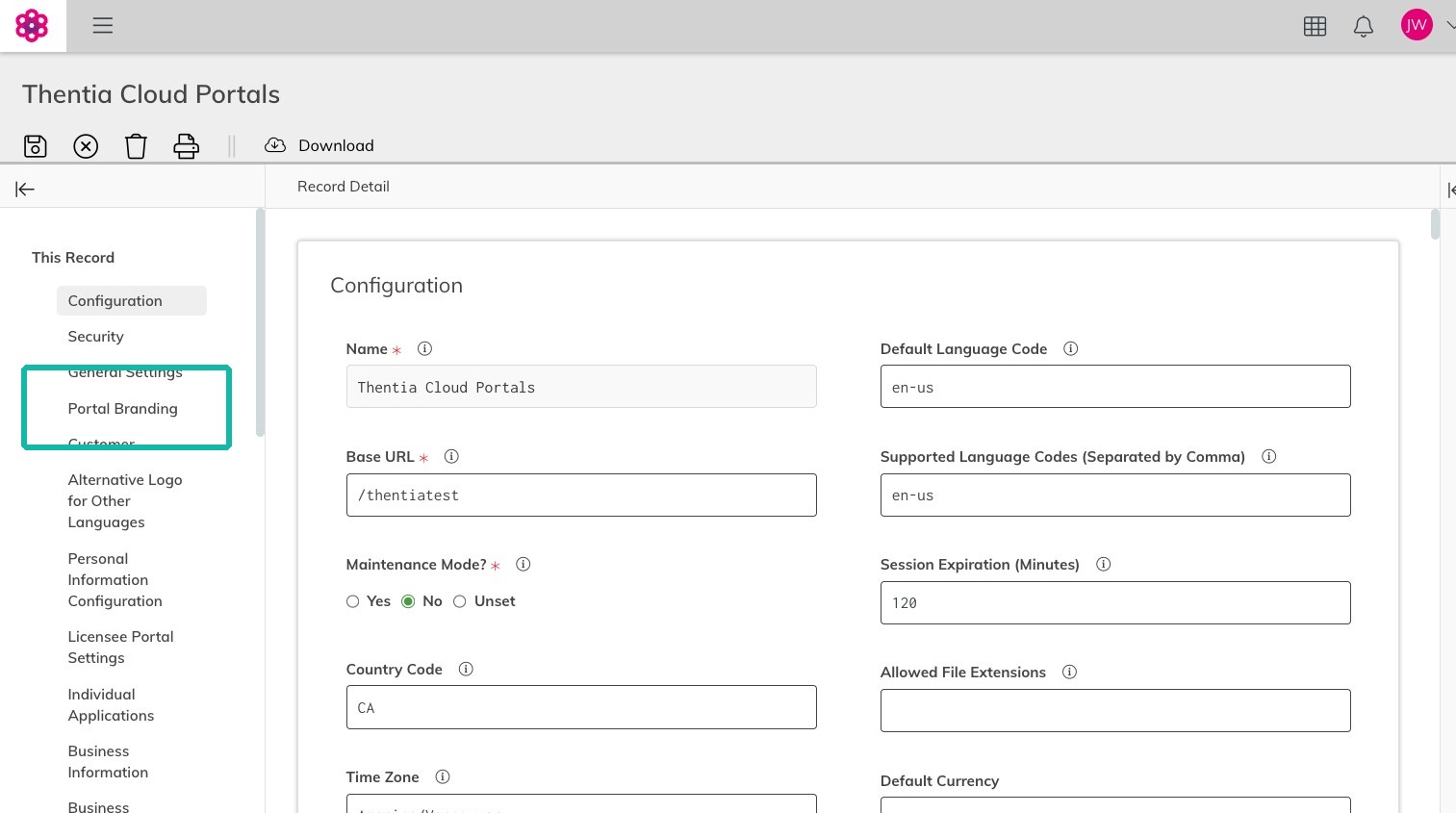
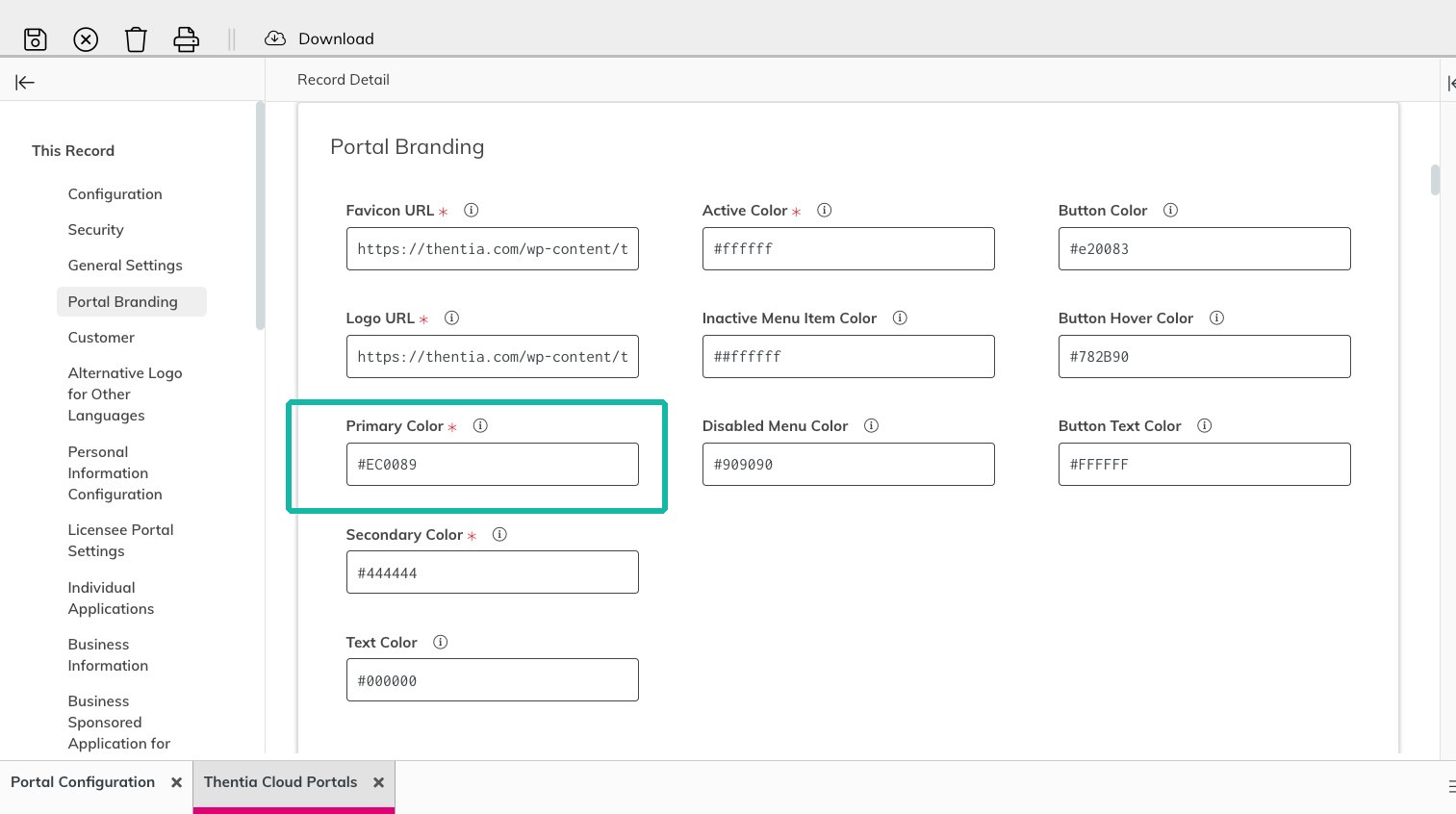
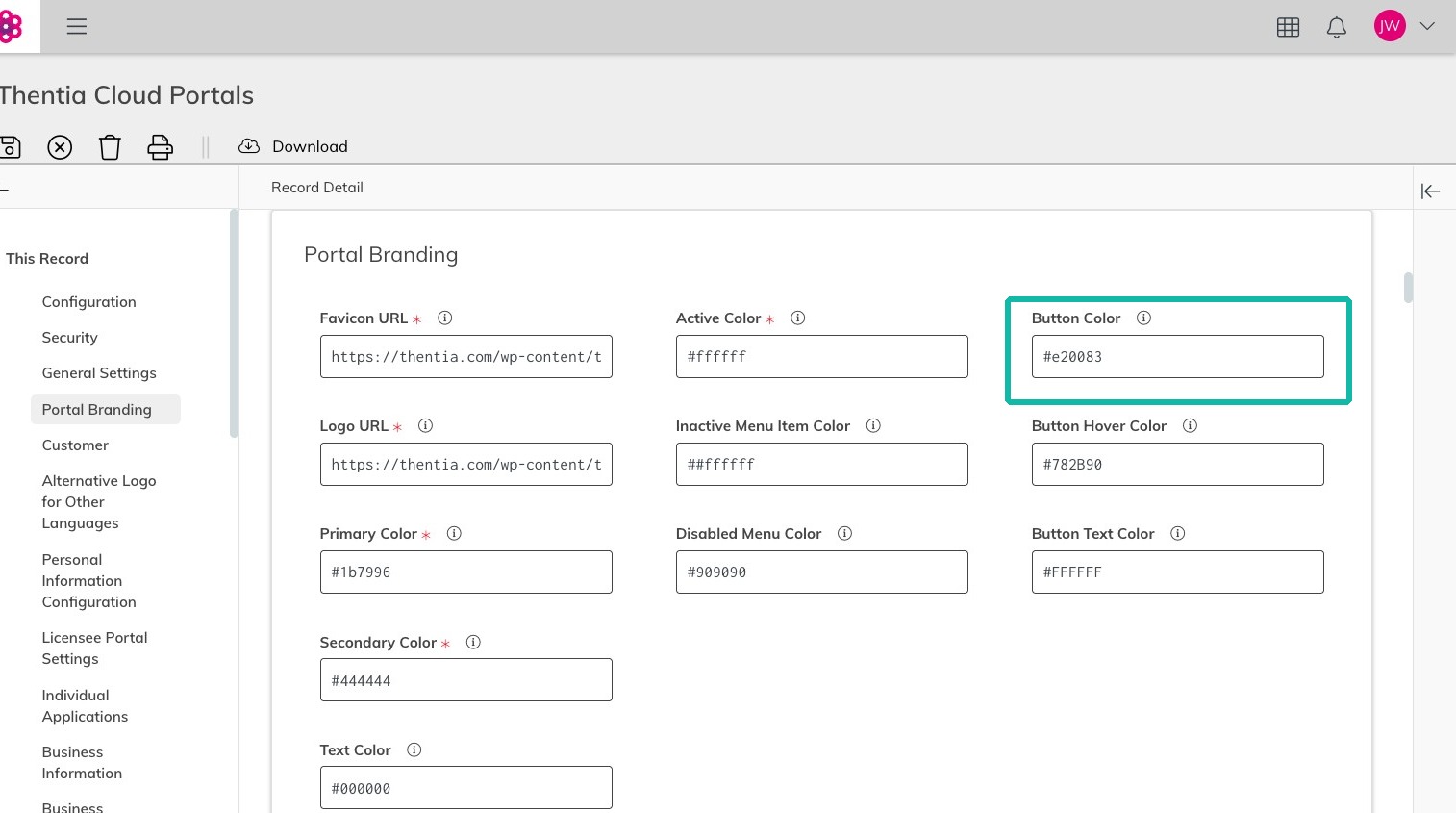
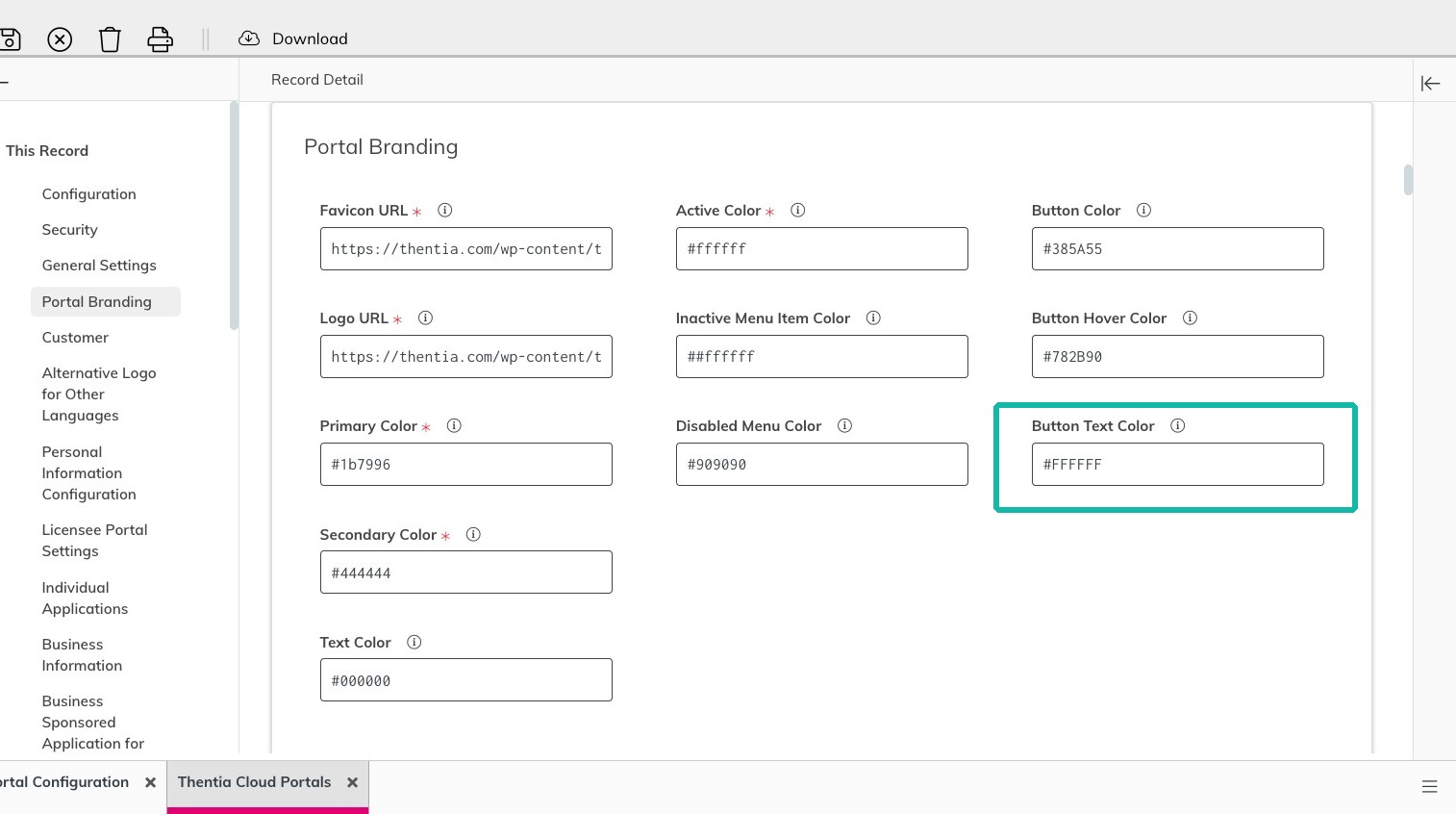
Comments
0 commentsArticle is closed for comments.